Make a Logo Visualizer: A Reactive EQ Ring Around Your Brand
Turn your logo into a music visualizer with the radial logo-crown template — logo upload, center safe zone, color modes and export sizes for every platform.
Novus Team8 min read
The logo-in-the-middle visualizer — a brand mark holding the center while a ring of EQ bars reacts around it — is the workhorse video for podcasts, DJs, labels and lo-fi channels: recognizable in a feed, professional on a stream, reusable for every episode or track. In Novus this is the Radial engine's logo-crown mode, and building one takes about ten minutes. Everything below is free and exports without a watermark.
Step 1 — open the logo-crown template
Head to the Radial engine page and choose logo-crown, or jump straight to it at /templates/radial?mode=logo-crown. Open it in the editor and add your track — the ring starts reacting immediately with a placeholder center, so you can hear and see the scene before your own mark goes in.
Step 2 — upload your logo
Use the logo upload to replace the placeholder with your own mark (in Creator Studio, uploads live in the project's assets area, logos included). A PNG with a transparent background looks best by far — the mark floats over the scene instead of sitting in a box. Favor a reasonably square crop and a generously sized source image; the exporter can render up to 4K on desktop, and a tiny logo file is the one thing that will look soft at that size. One more filter worth applying: marks with hairline strokes or tiny lettering struggle at feed sizes no matter how well they render, so if your brand kit includes a simplified variant, this is its moment. Solid shapes and strong silhouettes survive both the glow treatment and the shrink to a phone screen.
Step 3 — trust the center safe zone
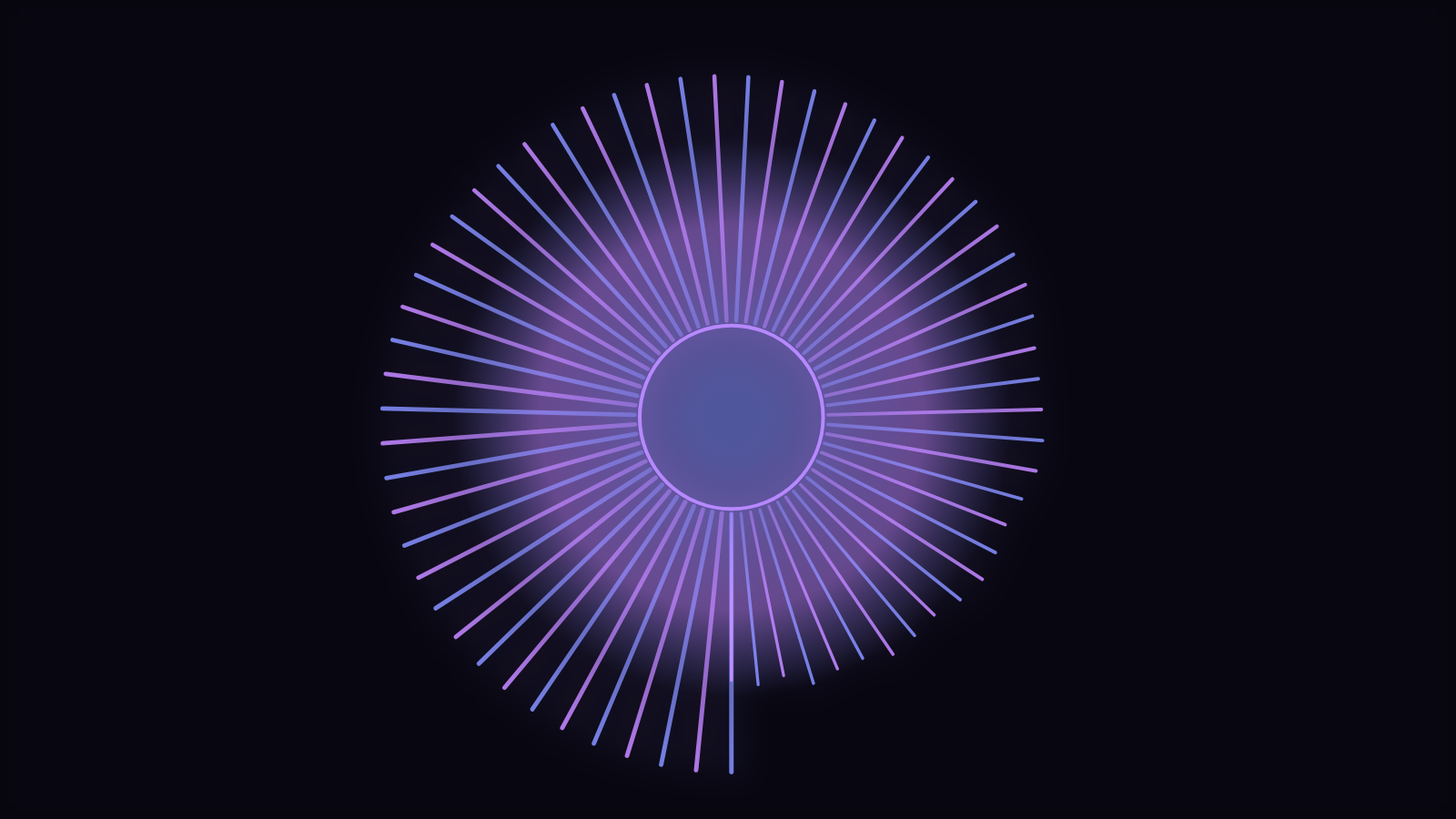
logo-crown reserves a protected center safe zone: the radial EQ ring reacts around your logo and never over it, so the mark stays clean and legible through the loudest drop of the song. Size the logo to fill that zone confidently without crowding its edge — too small looks timid, too large fights the ring. If your logo is a wordmark, this zone is exactly why the text never gets sliced by a spiking bar — and it is why starting from logo-crown beats improvising a logo overlay on some other engine, where nothing stops the visuals from drawing straight across your mark mid-drop.
Step 4 — color it to your brand
Color Mode offers three routes: a duo of two colors, a gradient, or the full rainbow spectrum. For brand work, duo is usually right — set it to your two brand colors and every frame of the video becomes on-palette by construction. A touch of glow lifts the ring off a dark background; chromatic aberration adds broadcast-style edge but is worth using sparingly here, since the crisper your mark stays, the more professional the whole video reads. On backgrounds: dark is the easy win, because the ring's glow reads as light and a white or light logo pops against it. If your brand lives on light backgrounds instead, skip the glow and let clean contrast do the same job.
Step 5 — tune the motion
Novus beat sync fires a discrete, visible hit on every beat — deterministic, so your export matches the preview exactly. For a brand video, restraint wins: set Pulse Intensity to a medium swell so the ring clearly answers the beat, keep Beat Response moderate, and hold Shake Amount low or at zero — frame shake moves your logo, and wobbling brand marks read as glitch, not energy. A slow Rotation Speed adds a premium orbiting drift between hits. For the theory behind these three controls, see Beat Sync Explained.
Step 6 — try the spectrum-wings preset
Want a wider composition? The spectrum-wings preset flanks the logo with mirrored spectrum wings — your mark anchors the center while frequency detail spreads to either side. It fills a 16:9 frame beautifully, which makes it a strong pick for YouTube, where the classic ring can leave the far edges of a widescreen frame feeling empty.
Step 7 — export for every platform
Render in the size the destination expects: 16:9 for YouTube, 9:16 for Shorts, Reels and TikTok, square for feed posts. Exports render right in the browser as MP4 or WebM — up to 4K on desktop, 1080p on phones — and because rendering is deterministic, the preview you approved is the file you get. One project, re-exported at each size, gives your whole channel lineup a matching look.
The thumbnail test
Before publishing, look at a frame of the video at roughly the size it will appear in a crowded feed. If the logo is not instantly recognizable that small, enlarge it within the safe zone or simplify the mark — feed size is where a logo video earns its living.
Turn one video into a series
The real payoff of a logo visualizer is repeatability. Keep the project, and for the next episode or track just swap the audio and export again — the logo, palette and motion settings carry over, so every release lands with the same identity. Deterministic rendering compounds the benefit: the look you approved once is the look every future export inherits, with no surprises between preview and file. If you publish to several platforms, run the 16:9, 9:16 and square exports in one sitting while the project is open, and the whole release goes out matched.
Going further
The template gets you a finished video; Creator Studio gets you a signature one. Open the same project there and add a second engine layer behind the ring — a slow starfield or drifting dust-storm gives the video depth without touching the logo's safe zone. Your first wired composition walks through the node graph, and the step-by-step guides in Tutorials cover neighboring workflows when you are ready for more.
Reviewed by the editorial team. Report a correction.
Keep reading
Was this page helpful?
Anonymous. Only this page’s address and your yes/no are recorded, and only if you allowed analytics cookies.
Ready to make your own?
Open the editor, drop in a track, and export a watermark-free video — free, no account.
Open the Editor