Preview Before You Commit: Template Audio, Six-Mode Cycling & Logo Crown
How Novus template cards play real sample audio, cycle an engine's six modes on hover, and how Logo Crown turns a brand mark into a radial visualizer you can open in Studio or Classic.
Novus Team9 min read
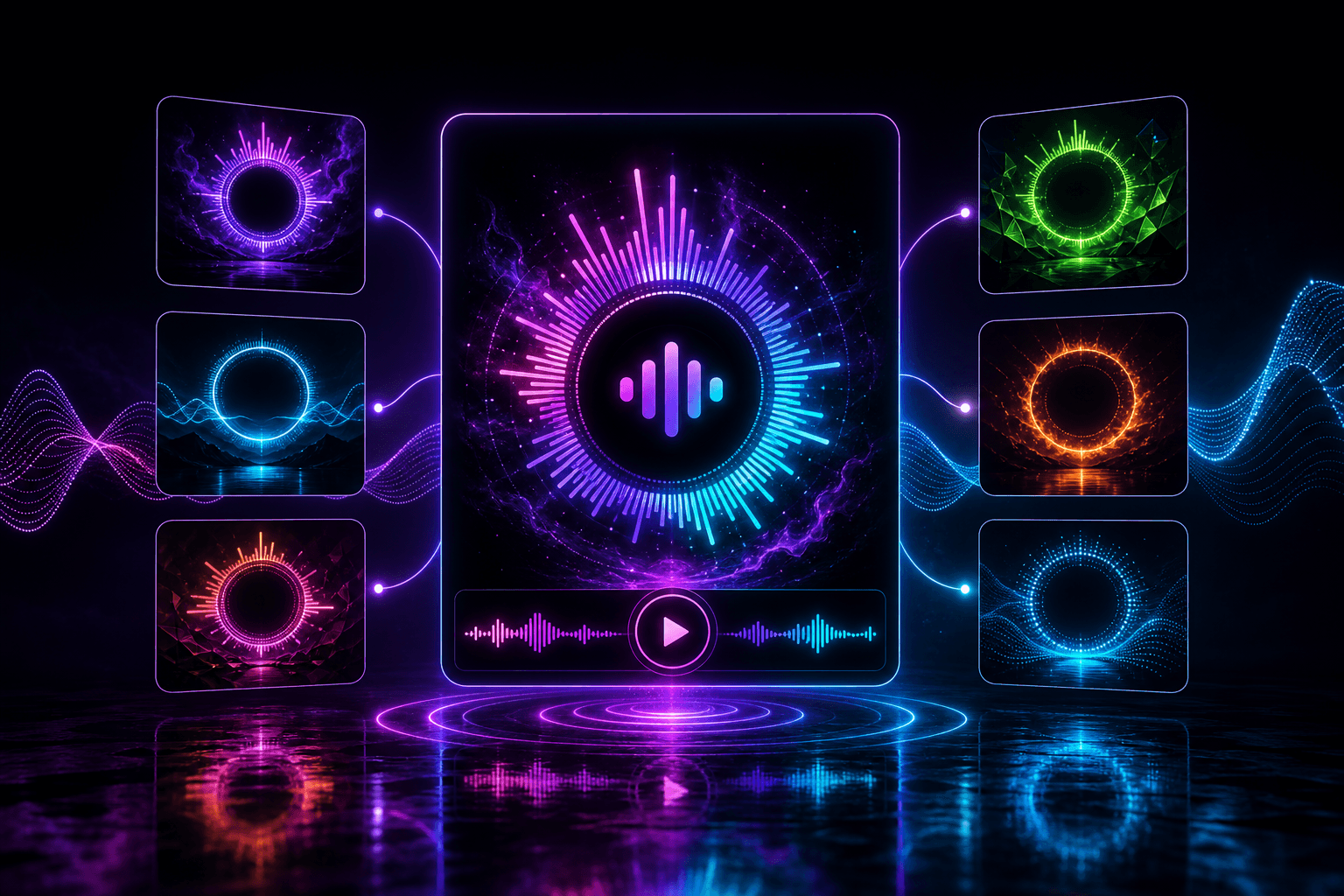
Choosing a visualizer from a still thumbnail is guessing. The motion that sells a look — a bass punch, a radial bar crown, a trail that dissipates and reforms — only appears when audio is moving the engine. Novus templates are built so you can hear the reaction before you commit to an edit session.
This guide covers three product surfaces that work together: live template previews with copyright-safe sample audio, hover cycling through each engine's six modes, and the Logo Crown radial workflow for brand-centered scenes. Along the way it ties those previews to the same beat-sync controls you will tune later in the Classic editor or Creator Studio.
Why a still is not enough
A static card can show color and silhouette, but it cannot show onset timing, trail decay or how aggressively a tunnel rushes on the kick. Earlier template detail pages could look like they were only gently pulsating because the preview used a synthetic audio frame — a beat-shaped pulse without a real track. That is useful for offline capture, but it is a poor audition of musical motion.
Template detail previews now route through the same sample-audio path the Audio Library and hover cards use: a proxied, copyright-safe SoundHelix track selected for the engine. You get real FFT bands, waveform samples and beat onsets driving the V3 canvas, so Spectrum, Radial and Particles behave like they will with your own upload — just with a known demo song.
Preview music is for auditioning, not for your release
Sample tracks help you judge motion. Your export should use audio you own or have licensed. See Free Preview Music, Copyright and Your Uploads for the boundary between platform libraries and Content ID.
Hover previews and six-mode cycling
On the templates grid, engine cards can start a live preview on hover (desktop) or when they enter the viewport on capable mobile devices. While the preview runs, Novus cycles the engine's six modes on a short interval so you see dust-storm versus orbit-swarm, or pulse-orb versus logo-crown, without opening six separate pages.
- Each V3 family — Particles, Trails, Spectrum, Waveform, Radial, Tunnel, Bars, Bloom, Character Motion — ships six modes with distinct default overrides.
- Mode pills on the detail page deep-link with
?mode=so you can share or bookmark an exact look. - Companion modes stay within the same engine so you compare personality, not an unrelated family.
- When you click through to Edit, the selected engine and mode become the starting composition rather than a generic default.
If you already know the genre fit you want, The Right Visualizer Mode for Every Genre and Meet the Novus Visualizer Engines map families to musical jobs. Use the live preview when you need to confirm this mode's motion, not just its thumbnail color.
What beat sync should look like in a preview
A healthy preview is not a continuous zoom. Particles should spawn or shake on onsets, spectrum and bars should punch with bass energy, radial rays should deform with the FFT, tunnels should rush with low-end, and trails should accelerate or burst rather than drift forever. Shared controls — sensitivity, audioAmount, beatSyncAll, attack and release — feed every engine's energy helpers so the catalog knobs you see in Studio and Classic are the same knobs moving the canvas.
- Sensitivity — how easily quiet material reaches a visible response.
- Audio amount — how much of the drawing is driven by audio versus idle motion.
- Beat sync all — a global emphasis so pulse, shake and onset paths stay engaged.
- Attack / release — how quickly the response rises and falls after a hit.
For the vocabulary of pulse, hits and shake, read Beat Sync Explained. For the full control strip, Every Audio Reactivity Control, Explained is the reference.
Logo Crown: a radial built for a brand mark
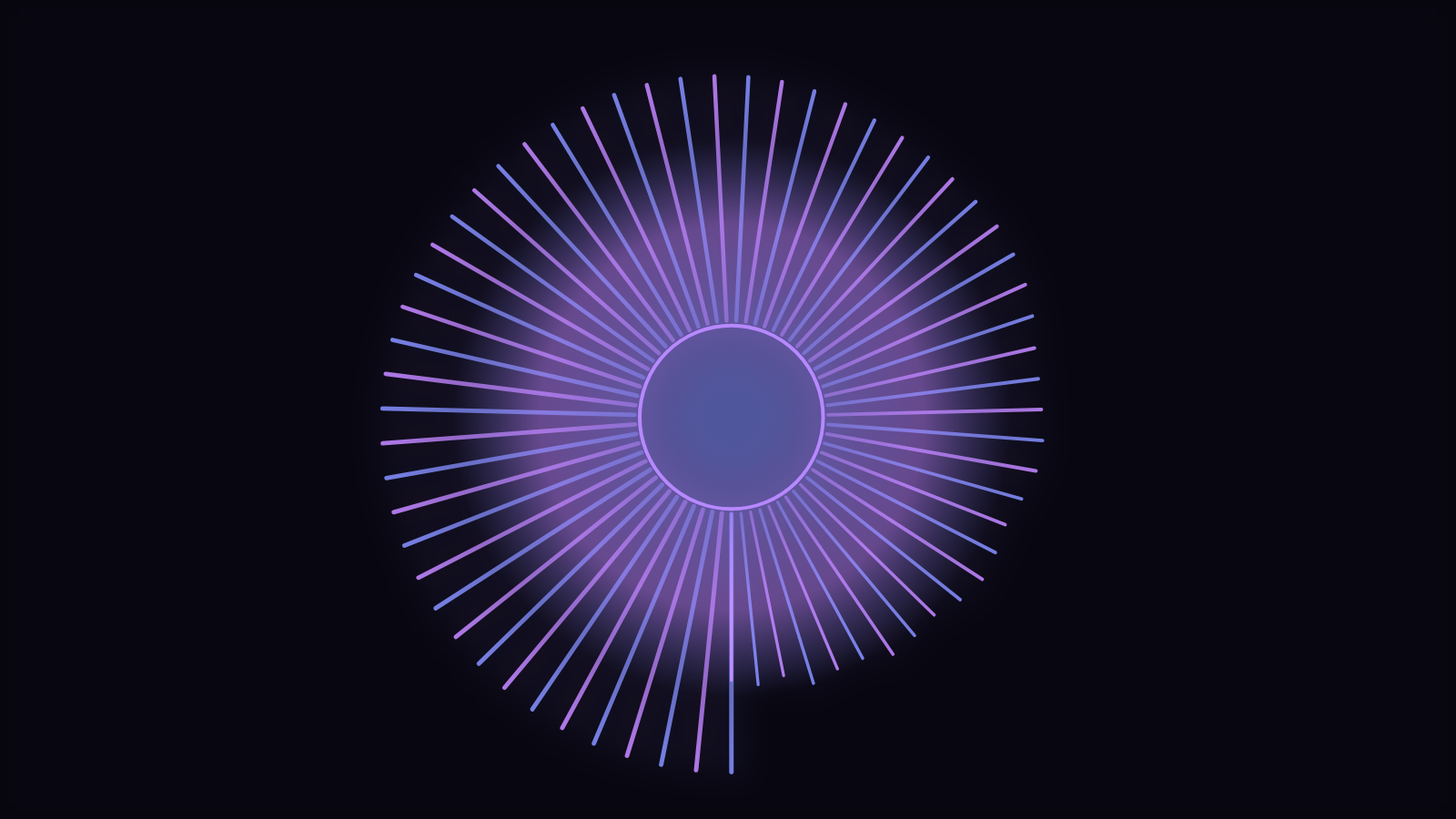
Logo Crown is the Radial mode that clears a center safe zone and draws frequency rays around it — a reactive EQ ring rather than a solid pulsing disc. On the templates side it appears as Radial → Logo Crown (/templates/radial?mode=logo-crown). In Studio you can add a logo layer on that cleared center; in Classic you can place logoImage with size and glow so the mark sits inside the crown.
- Open Radial → Logo Crown from templates and let the sample audio drive the rays.
- Click through to Studio or Classic with that mode selected.
- Add or upload your logo; keep it inside the safe zone so bars never clip the mark.
- Tune thickness, inner radius / center safe zone, sensitivity and colors until the crown reads at thumbnail size.
- Optional: stack a soft particle or bloom layer underneath for atmosphere without covering the logo.
The thumbnail test still wins
Pause on a loud beat and shrink the preview. If the logo vanishes into glow or the rays look like noise, reduce bloom, thicken the mark, or pull the safe zone outward. Make a Logo Visualizer walks the branding checks in more detail.
From template audition to a real project
Auditioning is not editing. Once a mode feels right, open it in an editor, replace the sample track with your song, and save. Guests can export immediately; signed-in creators get durable projects and the unified library. Multi-layer stacks that start from a template plus a second engine should follow the parity checklist in One Composition, Two Editors so overlays survive the Studio↔Classic handoff.
- Pick a family on /templates and watch the hover cycle through modes.
- Open the detail page and play the sample-audio preview at 30 or 60 FPS labeling — judge motion, not just color.
- Select the mode that matches the song's job (atmosphere, beat punctuation, brand ring, lyric/glyph field).
- Edit in Classic for guided export or Studio for layers and graph routing.
- Export platform sizes with Export Settings for YouTube, Shorts, TikTok & Reels.
Character text when the "logo" is a word
Not every centerpiece is an image. Character Motion modes such as word-wave and glyph-field let you set displayText and glyphSet so letters themselves deform on the beat. Use that when the brand is a name, a drop, or a short lyric hook rather than a mark file. Keep the string short enough to read at mobile width, and bind deformation to mid or onset if bass-only warping makes the word illegible.
Template previews, mode cycling and Logo Crown exist so you spend less time guessing and more time finishing. Hear the reaction, pick the mode, place the brand, then take the same composition into Studio or Classic knowing the audio path and the engine roster are already the ones your export will use.
Reviewed by the editorial team. Report a correction.
Keep reading
Was this page helpful?
Anonymous. Only this page’s address and your yes/no are recorded, and only if you allowed analytics cookies.
Ready to make your own?
Open the editor, drop in a track, and export a watermark-free video — free, no account.
Open the Editor